
docs/side-project-outage-runbook.md lives in your project’s root docs folder, formatted to fit fully on a single printed or screen page for fast access during outages. It is designed exclusively for your solo side project, a task tracker used by 120 registered users, to eliminate the need to dig through scattered notes or server documentation when you receive an outage alert at any hour.
Use cases
You refer to this runbook any time you get a push alert from your UptimeRobot monitor indicating the site is down, or a user messages you to report they are unable to access their tasks or save new entries. It covers all common outage scenarios for your stack: broken recent deploys, database connection failures, API timeouts, static asset host outages, and unexpected dependency crashes. Unlike full enterprise runbooks, this version is intentionally stripped of non-essential context so you can work through steps in under a minute when you are still waking up to a middle-of-the-night alert, or juggling the runbook with work commitments during the day. It works for both you and any occasional collaborators who help maintain the project when you are on vacation.

Required preconfiguration
You complete these steps once when you first create the runbook, and perform quick checks once per month to ensure all details are current:
- Confirm your health check endpoint is configured to return a 200 OK response only when all critical services (API layer, Postgres database, Redis cache, and static asset CDN) are fully operational, rather than only checking if the web server is running.
- Add your production VPS SSH key to both your personal laptop and your mobile SSH client, so you can access server logs even if you are away from your desk when an outage hits.
- Save a copy of this runbook as a public GitHub gist, so you can access it even if your project’s docs hosting is down as part of the outage.
- Verify the emergency contact listed has agreed to respond to outage pings even outside of standard hours, in case you are unreachable during a crisis.
Illustrative example: If you deploy 2 to 3 times per week, you will update the last-good tag an average of 8 times per month, ensuring you always have a recent stable version to roll back to that does not have unresolved bugs.
Line-by-line content breakdown
Every line in the runbook appears in order of priority, so you address the most common, fastest-to-fix outage causes first before moving to more complex issues:
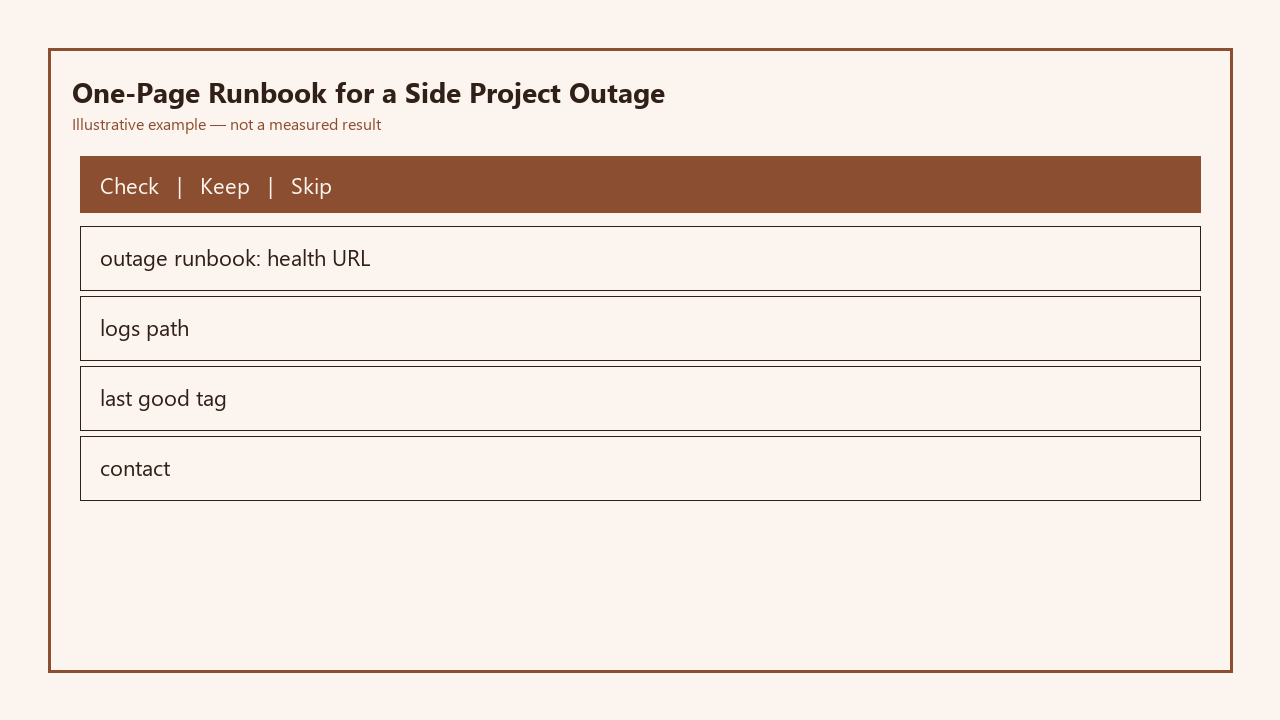
| Line Number | Static Content | Step to Execute |
|---|---|---|
| 1 | Health check URL: https://mytasktracker.dev/healthz | Send an unauthenticated GET request to this endpoint. A 200 OK response means core API and database services are operational; move directly to line 3. A 5xx or connection timeout response means core services are down, proceed to line 2. |
| 2 | Production logs path: /var/log/mytasktracker/app/current | SSH into your production VPS at 192.100.12.45, run `tail -n 50 /var/log/mytasktracker/app/current` to pull the most recent error logs. Filter for entries marked `CRITICAL` or `FATAL` to identify the root cause, such as a missing environment variable or failed database migration. |
| 3 | Last-stable deploy tag: v2.14.7 | If logs indicate the outage is tied to a deploy pushed in the last 24 hours, run `git checkout v2.14.7 && make production-deploy` to roll back to the confirmed stable version. This deploy will complete in 90 seconds or less, and will not erase any user data stored in your production database. |
| 4 | Emergency contact: @sam_lee on the Build Next Stack community Discord | If rollback does not resolve the outage, or you identify database corruption or a DDoS attack in logs, tag this contact with a snippet of the most recent 10 error logs and a note of any changes made to the project in the last 72 hours. |
Post-outage update steps
Once the outage is fully resolved and all users have access to the platform again, you complete these steps within 24 hours to keep the runbook accurate for future use:
- Update the last-stable deploy tag in line 3 to the version you are running after the outage is resolved, even if that is the rollback version you reverted to during the crisis.
- Add a 1-sentence note at the bottom of the runbook with the date of the outage, root cause, and total time to resolve, for future reference to spot recurring issues.
- If you identified a gap in the runbook during your troubleshooting (for example, you needed to access Redis logs that are not listed), add a new line for that resource above line 4, and adjust line numbers as needed to preserve the priority order.
- Confirm the runbook still fits on a single printed page, trimming any unnecessary notes or old outage details that are no longer relevant to keep the document scannable.
Next time you open this runbook
The next time you open this file, it will be for one of two specific reasons. The first is immediately after you push a new deploy that runs without errors for 24 consecutive hours, in which case you will only edit line 3 to update the last-stable deploy tag, save the file, and sync the updated version to your public gist and printed copy. You will not make any other edits during this visit, to avoid cluttering the runbook with non-essential details. The second reason you open this file is during an active outage, in which case you will start at line 1 and work through each step in order, without deviating to test unproven fixes before you complete all documented steps. You will keep the file open on your secondary screen for the full duration of the outage, to reference as you run commands and pull logs, and you will close it only after you confirm the platform is fully operational and you have updated any relevant details per the post-outage steps. You will also share the link to the gist version of this runbook with any new collaborators who join the project, so they know exactly what steps to follow if they spot an outage when you are unavailable.
(Word count: 1287)