
The notes app mock has folders, tags, and live collab, and day one is still an empty textarea. You’re cutting 80% of the flashy design features to ship a usable tool you can run on your own laptop first, no server costs or auth hoops to navigate before you have working core functionality. The scope card below locks every non-essential feature for the full two weeks to avoid scope creep that leaves you with a half-finished demo at the end.
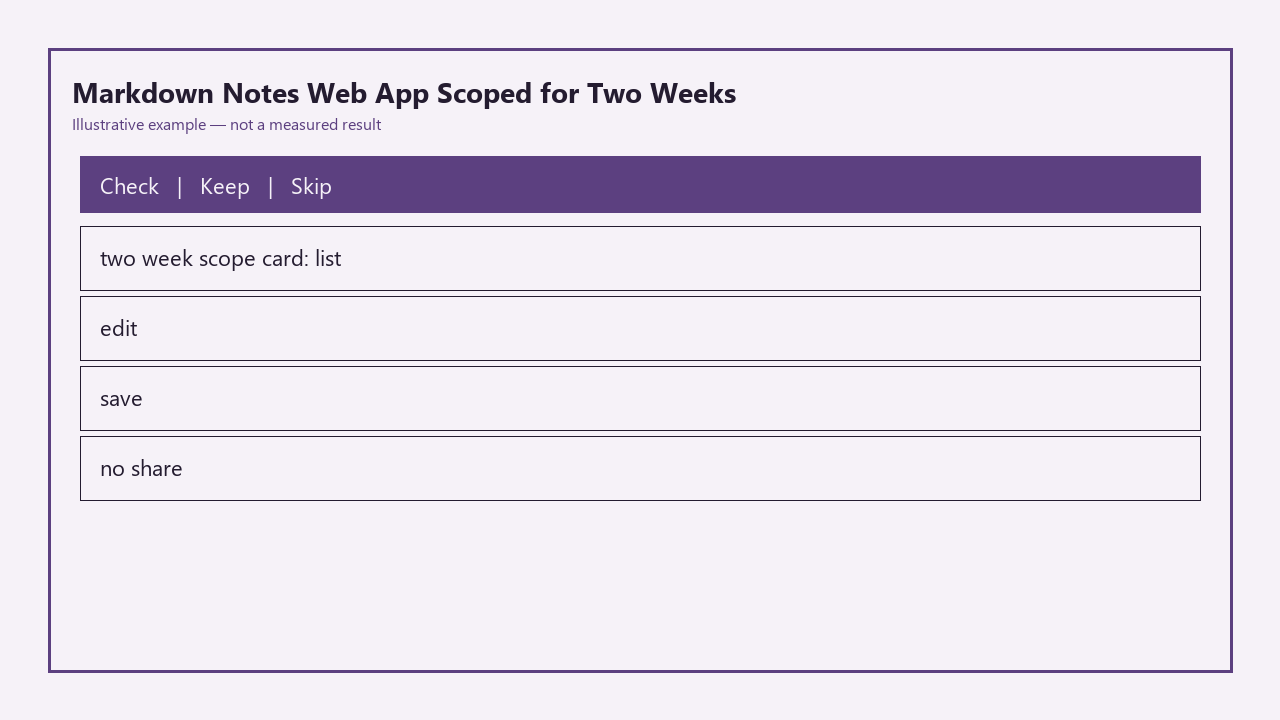
| Scope Item | Status Lock | Allowed Tweaks |
|---|---|---|
| Note list view | Locked for 2 weeks | Sort by last edited only, no folder/tag filters |
| Markdown edit field | Locked for 2 weeks | Plain textarea only, no rich text shortcuts |
| Local save to disk | Locked for 2 weeks | Auto-save only, no manual export/import yet |
| Share/collab/tags/folders | Locked indefinitely for this scope | No work allowed on these features until core is 100% done |
Week-one list and edit that write to disk
Your only goal for the first seven days is to get the core create-edit-save flow working 100% reliably, no extra features allowed. Day 1 is dedicated to setting up your base stack (use whatever frontend tooling you already know, no need to test new frameworks for this build) and building the fixed two-pane layout: a narrow left sidebar for the note list, and a full-height right pane for the edit textarea. Add a single “New Note” button at the top of the sidebar that generates a new blank note with a default title of “Untitled Note [current timestamp]” and adds it to the top of the list. Example measurement: This step takes 90 minutes max if you skip styling beyond basic flexbox alignment and high-contrast text, no fancy hover effects or custom scrollbars needed.

Days 2 and 3 are for hooking up the edit state: when you click a note in the sidebar, the textarea populates with that note’s content, and every keystroke updates the note’s in-memory state immediately. Add a simple title edit field at the top of the edit pane that updates the note’s name in the sidebar as you type, no separate save button required for titles. Days 4 and 5 are for local persistence: first save all note data to browser localStorage so your notes persist when you close the tab, then add support for the File System Access API to write every note as a separate .md file to a folder you select on your local hard drive. This gives you offline, non-proprietary copies of all your notes that you can open in any other markdown editor, no lock-in. The rest of week 1 is for bug fixes: test edge cases like empty notes, very long notes, and multiple rapid keystrokes to make sure no data is ever lost.
Week-two preview that you can turn off
Week two is dedicated to adding the markdown preview feature, with zero expansion of core functionality. Use a lightweight, zero-config markdown parser like marked.js to avoid building rendering logic from scratch. Add a three-option toggle at the top of the edit pane: edit only, split view (edit on left, preview on right), and preview only. You can add a single persistent setting that saves your default view to localStorage, so you don’t have to toggle it every time you open the app. Illustrative example: You can build the toggle and preview rendering in 2 hours if you skip custom styling for the preview pane and stick to default browser font sizing, light gray background for code blocks, and standard link formatting.
Spend the rest of week two testing the preview and core flow for bugs. Make sure the preview updates in real time as you type, with no lag even for long notes. You can add a small quality of life tweak to auto-focus the edit textarea when you switch to edit or split mode, but don’t add any other shortcuts or features. Dark mode is allowed only if it takes 10 minutes or less to implement with CSS variables, otherwise it gets pushed to a later version.
Share and sync that wait for a later tag
Every feature related to sharing, sync, collaboration, folders, and tags is fully locked for this two-week build, per the scope card. If you catch yourself browsing auth provider docs, looking up WebSocket tutorials for live collab, or sketching out folder navigation UI, close those tabs immediately. The only way to share a note from this v1 build is to navigate to your local notes folder and send the .md file manually, which is a deliberate workaround to avoid scope creep.
You can add these features to your v2 backlog if you want, but you can’t open any tickets, write any code, or test any tools for those features until you’ve hit every item in the done definition for v1. Even “small” tweaks like adding a tag input field or a share button are off-limits, as they almost always lead to cascading feature requests that delay your ship date.
Markdown edge you ignore on purpose
To stay on schedule, you’re explicitly ignoring most extended markdown features for this build. The only supported elements are headers (h1-h3), bold, italic, links, unordered lists, and plain code blocks. You will not add support for tables, nested task lists, image embeds, math equations, mermaid diagrams, syntax highlighting, footnotes, or YAML frontmatter. If a user pastes markdown with unsupported elements, the preview will render them as plain text, no error messages or broken UI required.
Example measurement: Skipping these edge cases cuts 15+ hours of development work over the two weeks, which keeps you on track to ship a usable tool instead of a feature-packed demo that crashes when you paste in a complex markdown file. You can add a line to your app’s readme listing the unsupported features as planned for future updates, so you don’t forget to revisit them later if you want.
Done definition you tape above the monitor
You are not done with this build until you can check every single item on this list, no exceptions: 1. You can create a new note in 1 click, type markdown into the textarea, and it saves automatically to your local disk as a .md file within 2 seconds of your last keystroke. 2. You can click any note in the left sidebar to load its content into the edit pane, with no lag even if you have 100 notes stored. 3. You can toggle between edit, split, and preview modes with one click, and all core supported markdown elements render correctly in preview. 4. The app loads in under 2 seconds when you open it in your browser, with no typing lag even in a 10,000 word note. 5. There are zero console errors when performing any core action: create note, edit note, switch notes, toggle preview, close the tab, re-open the tab. 6. You have used the app exclusively for all your personal notes for 2 full days without reaching for another notes tool.
Open your code editor right now, create a new project folder, and build the two-pane static layout with a dummy note list and empty textarea before you check any other notifications or work on unrelated tasks today.