Twelve tabs open every morning, and none of them is a script you own. You click through the same 7 personal dev blogs, 3 product release feeds, and 2 industry newsletters just to catch 2-3 useful links before you start work, wasting 15 minutes on average that you could spend on your side project. Most off-the-shelf RSS readers clutter feeds with ads, hide full content behind paywalls, or force you to use their sync service that breaks every other month. Building your own tiny script means you only get the content you want, no extra fluff, and full control over how it’s delivered.
Build Next Stack editors

Feeds you already open by hand this week
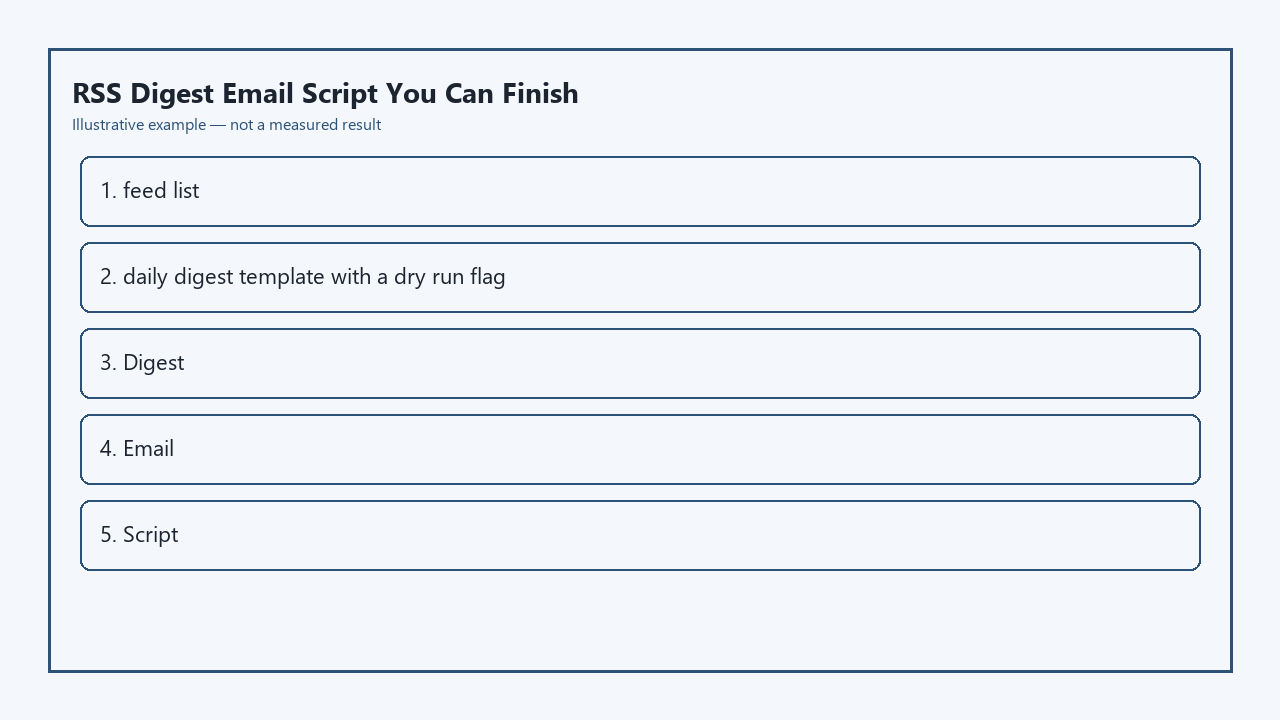
You don’t need to add 50 niche feeds to make this script useful. Stick to the 6-10 URLs you already load manually every 24 hours, no more. Avoid adding feeds that only post promotional content, or feeds that truncate posts to 10 words before a paywall. Example measurement: Curating 8 feeds takes 2 minutes total if you copy the URLs directly from your browser’s bookmark bar. Your complete, ready-to-use deliverable for this project is the combined feed list, digest template, and dry-run flag specification below, which you can copy directly into your script:
| Component | Required Details | Example Value | |
|---|---|---|---|
| Feed List Entry 1 | Full XML/RSS URL, content filter (skip posts with certain keywords), max posts per run | https://buildnextstack.com/rss, filter: “sponsored”, max 3 posts | |
| Feed List Entry 2 | Full XML/RSS URL, content filter, max posts per run | https://github.blog/all.atom, filter: “job posting”, max 2 posts | |
| Feed List Entry 3-N (max 10 total) | Full XML/RSS URL, content filter, max posts per run | Add your own hand-opened feeds here | |
| Digest Template Header | Static text, date stamp, total post count | “Your Daily RSS Digest for [YYYY-MM-DD] | 12 New Posts Total” |
| Digest Template Post Block | Post title, published date, 2-sentence excerpt, direct link, feed source label | “### [Post Title] (Source: Build Next Stack) | Published [MM/DD/YYYY] [2-sentence excerpt] [Full Post Link]” |
| Digest Template Footer | Unsubscribe note (for self-use, just a link to edit your feed list), run timestamp | “Generated at [HH:MM UTC] | Edit your feed list here: [local file path or private repo link]” |
| Dry-Run Flag | CLI argument that skips SMTP call, prints full digest to terminal, logs skipped posts | Command: `python3 rss-digest.py –dry-run` |
Broken XML you skip without crashing the digest
A huge percentage of public RSS feeds have malformed XML, missing publish dates, or truncated content that will crash a basic script if you don’t add guardrails. You don’t need to write 100 lines of error handling—just add three simple checks: first, skip any feed that returns a 404 or 500 status code when you fetch it, and log the error to a local text file so you can update the URL later. Second, skip any post that doesn’t have a valid title or direct link, since those are almost always broken draft posts or promotional spam. Third, use a lenient XML parser like Python’s `lxml` with recovery mode enabled, which will fix small formatting errors automatically instead of throwing an exception. Illustrative example: If 2 of your 10 feeds are broken on any given day, your script will still pull content from the other 8 and note the broken feeds in the footer of your digest so you don’t waste time troubleshooting. You can also set a limit for how many consecutive days a feed can be broken before it’s automatically removed from your list, so you don’t accumulate dead links over time.
Plain-text digest you can send to yourself
No need to build a fancy HTML email template that gets caught in spam filters or breaks on mobile. Plain text works perfectly for a digest you’re only sending to yourself, and it’s far easier to format in your script. Use the template you defined in the deliverable table above to structure each digest: start with the header that has the date and total post count, then group posts by their source feed so you can quickly scan for content from your favorite sites, then add the footer with the run timestamp and edit link. If you want to add a small amount of formatting, use Markdown in the email body—most email clients like Gmail and Apple Mail will render basic Markdown (headings, links, lists) automatically if you set the content type to `text/markdown` or `text/plain`. You can also add optional priority tags for posts that include keywords you care about, like “React 19” or “side project income”, so those posts show up at the top of your digest instead of being buried under less relevant content. Example measurement: Formatting the plain-text digest takes less than 20 lines of code in most scripting languages, no external template libraries required.
Dry-run flag that prints instead of mailing
Before you set up automatic sending, you need to test your script repeatedly without spamming your inbox every time you make a change. The dry-run flag you defined in the deliverable is a simple command line argument that changes two core behaviors of your script: first, it skips the entire SMTP sending step entirely, so no email is ever sent when you use it. Second, it prints the full formatted digest directly to your terminal window, plus a list of any posts or feeds that were skipped during the run, so you can debug issues with broken XML or content filters quickly. You can also add an optional flag to save the dry-run output to a local HTML or text file so you can see how it will render in your email client without sending it. Always run the dry-run command at least three times before you enable automatic sending, to make sure your content filters are working correctly, broken feeds are being skipped, and the template is formatting content as expected. Illustrative example: If you add a new feed to your list, run the dry-run command first to confirm it’s pulling the right number of posts and not pulling sponsored content you filtered out.
Cron line you add after three clean mornings
Once you’ve run the dry-run command three days in a row with no errors, you’re ready to set up automatic daily runs using cron (if you’re on Linux or macOS) or Task Scheduler (if you’re on Windows). The cron line will run your script at the same time every day, right before you usually sit down to check your feeds. Example measurement: If you usually start work at 9AM, set the cron line to run at 8:45AM so your digest is waiting in your inbox when you log on. A standard cron line for this script will look like this: `45 8 * * 1-5 /usr/bin/python3 /home/yourname/scripts/rss-digest.py >> /home/yourname/scripts/rss-logs.txt 2>&1` — this runs the script at 8:45AM every weekday, and saves all output and errors to a log file so you can troubleshoot if the digest stops arriving one day. You can adjust the schedule to run on weekends too, or run it twice a day if you check feeds more frequently. If you don’t want to run the script on your local computer, you can host it on a free tier VPS or a serverless function like AWS Lambda or Cloudflare Workers, so it runs even if your computer is turned off.
Open your bookmark bar right now, copy the first 3 RSS feed URLs you open every day, plug them into the deliverable table above, and run your first dry run in the next 10 minutes to see how much content you can pull without clicking a single tab.